

Getting Started with Clever Groups: A Teacher's Guide
If you've ever found yourself asking:
- How do I assign students to cabins or busses?
- How do I split students into fair and functional groups?
- How do I keep friends together while avoiding certain pairings?
You're in the right place, and this guide is going to help you getting started.
Organising students into groups—especially while accounting for preferences, gender balance, and behavioural needs—can quickly turn into a time-consuming, complex puzzle. In fact, the difficulty increases exponentially as group size grows. Manually assigning groups for 100 students can take hours or even days, and it's nearly impossible to demonstrate how effective your solution was.
That’s where Clever Groups comes in.
This guide will walk you through how to get started on Clever Groups from registration to creating your first optimised set of student groups. Let’s dive in.
What is Clever Groups?
Clever Groups is a powerful, web-based tool trusted by over 250,000 users since 2017. It’s used globally by teachers, school administrators, community leaders, and event organisers to quickly and fairly create groups of people.
Clever Groups allows you to define a team or cohort of people, enter preferences and constraints, and it instantly produces lists of groups with the highest level of overall group satisfaction.
"The use of this app has saved us dozens of hours of sorting and matching. It is much more efficient than simple spreadsheets." — Glenn Cassidy, NJ, USA
"It makes setting up groups fair and easy. My students can select who they want to sit with in privacy, and I have full control over final groupings." — Luke Strickland, Oregon, USA
Whether you're planning group activities in your classroom or organising hundreds of students for a school camp, Clever Groups streamlines the process.
So, getting started with Clever Groups is easy. Let's use a very simple example. Let’s assume I am a grade 6 teacher with 12 students, 6 girls and 6 boys. A 12-student class is rather small but allows for smaller screenshots in this article. I want to create groups of 3 students comprising only girls or boys. I have a list of their names but want to include their preferences in finalising the groups.
Clever Groups can handle up to 1000 students with highly complex scenarios, but this example will allow you to explore and build to solve whatever problems you are trying to solve.
Step 1: Registering and Creating Your First Team
Head over to clevergroups.com and click Register. You can register using:
- Your name, email and a password, or
- Your existing Google (Gmail) account
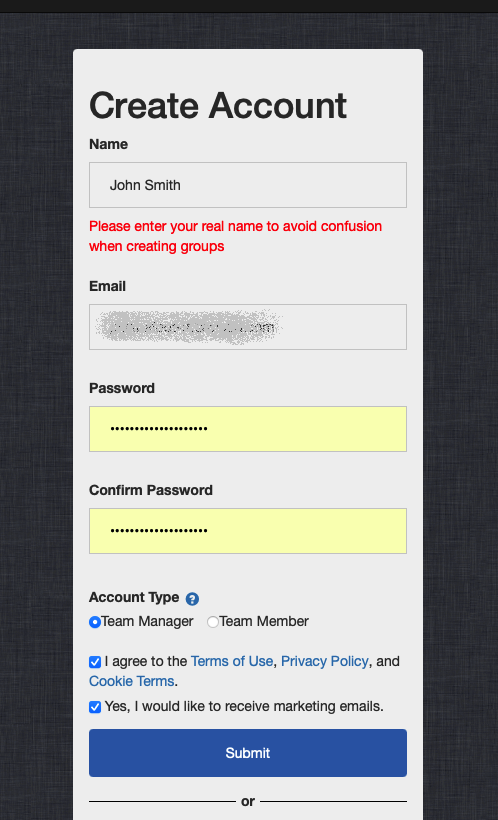
When registering, you'll be asked to identify your role. Select Team Manager if you're a teacher or group organiser.
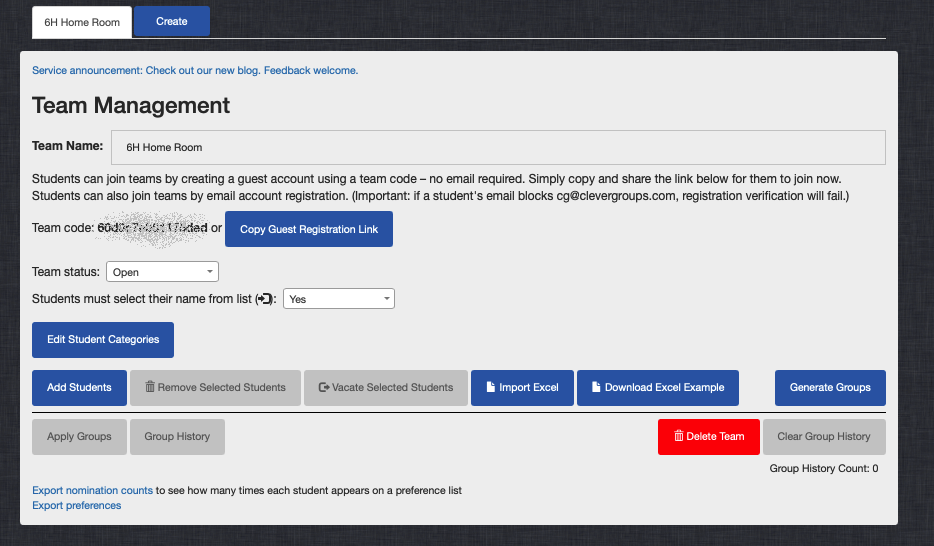
Once you've verified your email with the code sent to you, you're ready to create your first team. For example, you might create a team named 6H Home Room. Click the Create button at the top of the screen and enter the new team name.

Once done, you can start setting up and managing your team.
Step 2: Adding Student Information
To build groups, you first need to add your student information. There are several options:
- Manual Entry – Type in student names and preferences (time-consuming)
- Upload Names, Manual Preferences – Better, but still requires manual input
- Upload Names + Preferences – Fastest if you’ve collected the data already
- Upload Names + Preferences + Blocking Preferences – Complete upfront setup
Or save even more time and let your students enter their own preferences via a link — no email required - using the "Copy Guest Registration Link" button. There is a great reason to use the link - students won't need to register using their email. That is entirely possible, but some educational organisations prevent students receiving emails from any email address outside unless they are on an email whitelist. If this is your organisation, you may want to approach your IT organisation and ask to have all emails from clevergroups.com whitelisted too, otherwise the students will not be able to register by email.
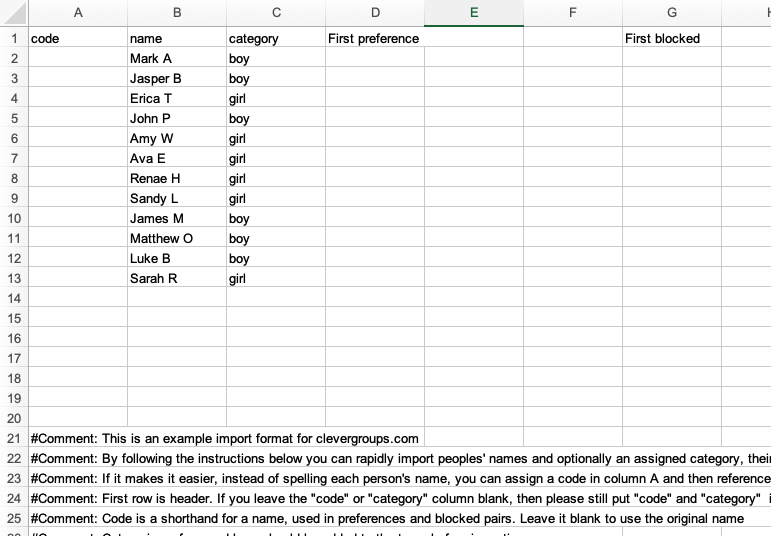
You can upload your list of students first and allow them to choose their name from a list when entering their preferences. This helps avoid duplicates or misspelled names. Download the Excel example and use that to complete a spreadsheet ready for upload. The spreadsheet allows you also to collect not only students’ names, but their preferences and your blocking preferences (more on that later). But if you want them to enter their preferences leave that blank in your spreadsheet. You don’t need to use the codes in the first column either, that can be blank too – it’s just a courtesy. Of course, blocking preferences can be left empty in the spreadsheet at this stage too.
In the example below I have entered 12 peoples’ names and assigned each a category. Before you upload, you must define the categories you intend to use. Use the Edit Student Categories button to enter these.
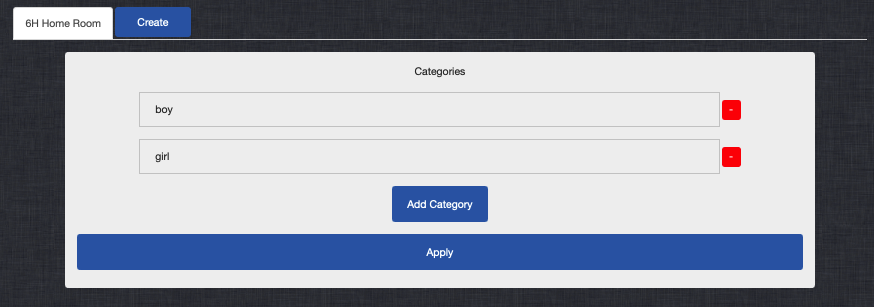
Categories can be anything, eg. “Special Needs Boy”, “Class Leader Girl”, “Advanced Student”, or just “Girl” or “Boy”, etc. And you don’t have to use categories at all. Use of categories depends on what you are trying to achieve.
Above I have entered 12 students, each a boy or girl, with no preferences at all. I am going to allow students to enter their preferences, and I will enter blocking preferences later. The most simple spreadsheet you might import could have just the names of students.
Once your spreadsheet is ready for upload simply hit the “Import Excel” button. Using the above spreadsheet the team will look like the below.
Don’t forget to tick "Students must select their name from list" when configuring your team, if you have uploaded their names.
You’ll be able to see in real-time who has joined and completed their preferences. Add or remove students anytime using the Add Students button or Remove Selected Students button.
Step 3: Student View – Joining the Team
In Step 3 we will look at the steps from a student’s perspective using their own device.
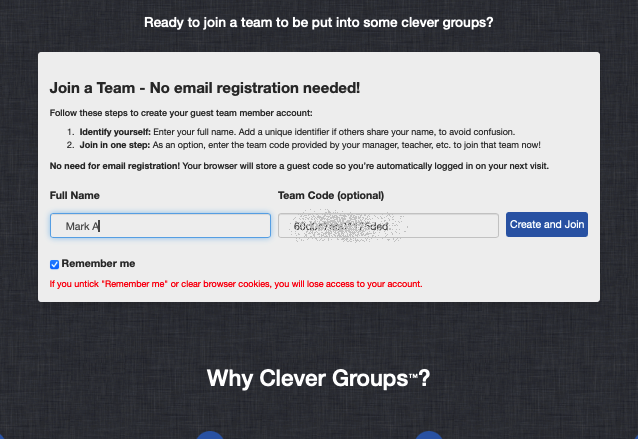
Send the code and the website to the students, or even better, click “Copy Guest Registration Link” and it will copy a team’s code in a link and take them to the Guest Registration on the home page.
They type their name and join the team in one click using the Create and Join button.
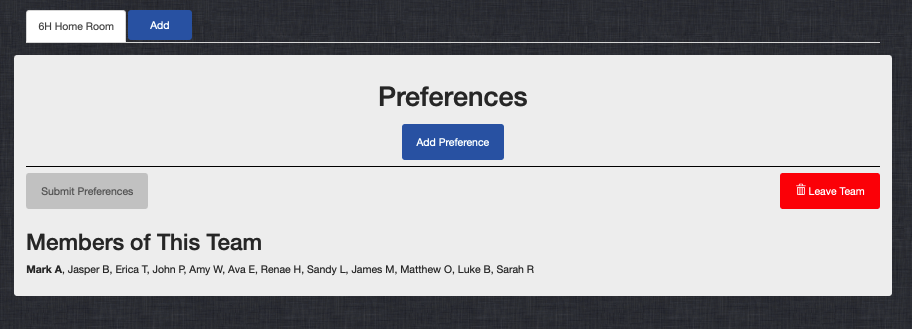
This takes them straight to the form to enter their preferences for that team.
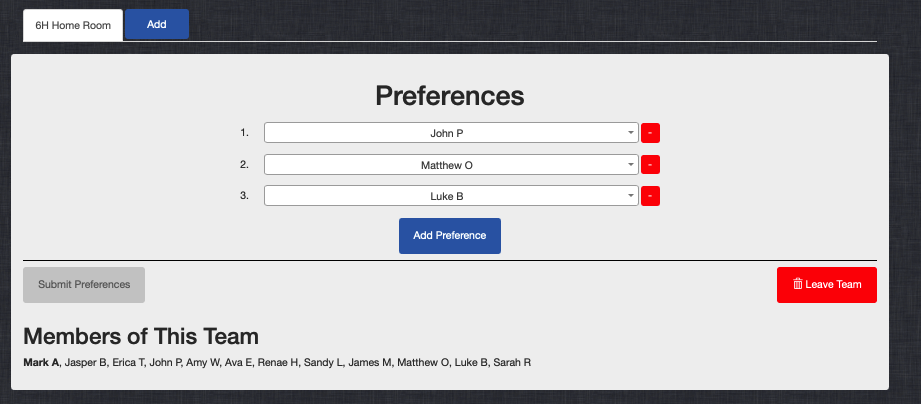
They can enter their preferences—typically 3 friends they'd like to be grouped with ands hit the “Submit Preferences” button.
If they want to change their choices later, they simply revisit the link from the same device. Clever Groups remembers their guest login details using a secure cookie.
For this simple example, I have only entered Mark A’s preferences.
Note 1: If you need to delete that guest, it’s simple – just click on Guest on the menu bar and then “Delete Account”. Note that this will delete that person and instantly remove their name from anyone else’s preferences at the same time. So, if that has been done in error, you will need to let others know to re-add the accidentally deleted person into their preferences.
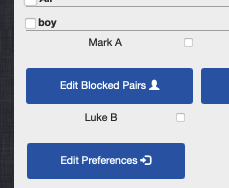
Note 2: As each team member e.g. student, enters joins the team the icon next to their name changes to a person icon. This doesn’t mean they have entered their preferences but does mean they have joined the team. Below, Mark A has joined, but Luke B has not.
Below is how the icon beside Mark A’s Edit Preference button appears back on the teacher’s view on their device as soon as Mark A joins.
Step 4: Add Teacher Constraints (Blocking Preferences)
Let’s return to the Teacher’s view and their device.
As a teacher, you may have students who shouldn’t be grouped together for behaviour or other reasons. These can be entered at any time e.g. in the spreadsheet, or at any time after.
Just find the relevant students and define who should not be grouped with whom. Clever Groups will respect these constraints during group generation.
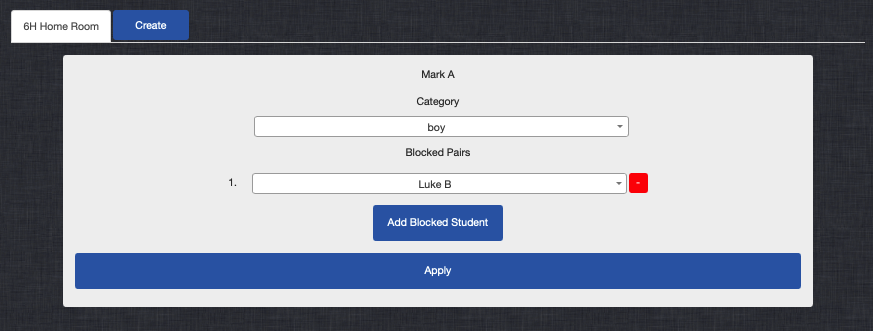
Let’s say Mark A (who has preferenced Luke B) should not be with Luke B for some reason. Simply find Mark A and click on his “Edit Preferences” button and add the blocked student “Luke B”. Clever Groups will make sure they are not together in groups.
Step 5: Set Your Grouping Criteria and Generate Groups
Now the fun begins!
- Select all students (click on checkbox “All”)
- Click “Generate Groups” button
- Choose the number of students per group (e.g. 3) and increase the number of groups until you have included all students from the team. In this case it would be 4 groups.
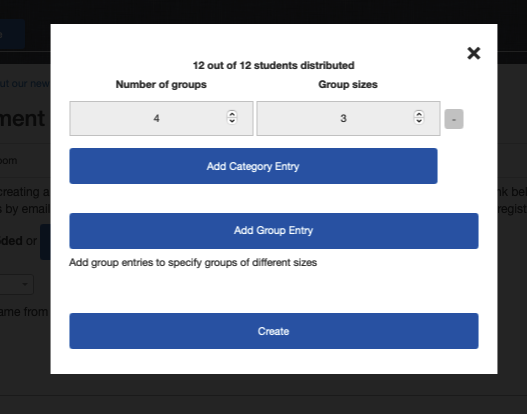
Clever Groups will automatically calculate how many groups are needed and balance them as best as possible.
Click Generate Groups to view your results. At the bottom of the team management screen, you should see your groups listed.
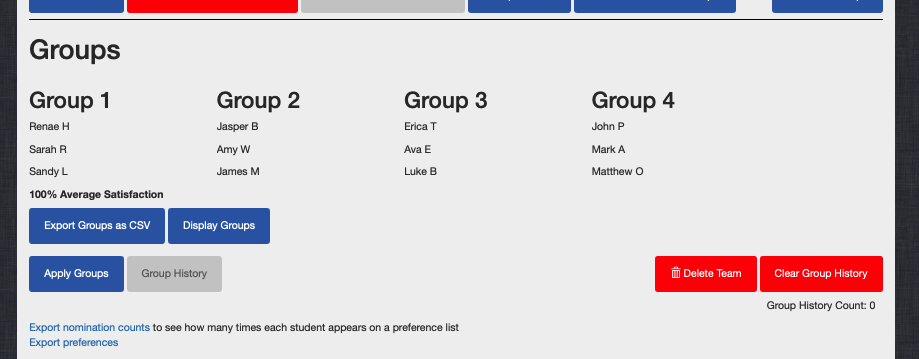
Note 1: Mark A and Luke B are not in the same group due to the blocked preference, despite Mark A indicating Luke B as his third preference. Mark A put John P and Matthew O as his first and second preferences and they are in his group.
Note 2: Boys and girls are distributed between the groups.
Now let’s do step 5 again but ensure only girls or boys are in any group.
- Select all students (click on checkbox “All”)
- Click “Generate Groups” button
- Choose the number of students per group (e.g. 3) and increase the number of groups until you have included all students from the team.
- Add category balance (e.g. 3 boys or 3 girls per group) by creating a “Category Entry”
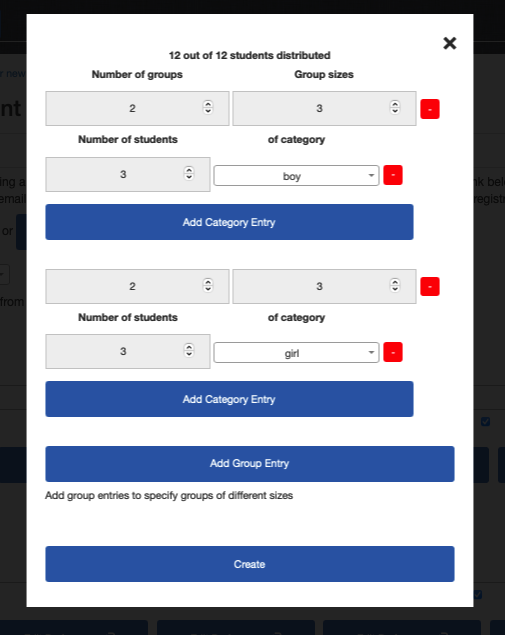
Note 1: If you have to create different amounts of different sized groups you would create one or more “Group Entry” and within each Group Entry you can have multiple Category Entries as above. This allows for quite complex arrangements such as handling different group sizes such as differing classroom desk sizes, classroom sizes, bus sizes, camp cabin sizes, etc.
Step 6: Review the Results
- See each group and who’s in it
- View overall group satisfaction scores
- Export your group lists or tweak using drag-and-drop
Now you can see that only boys are in any group and only girls are in any group. That Luke B is not with Mark A but his preferences are respected apart from that. The teacher's blocking preferences are considered mandatory.
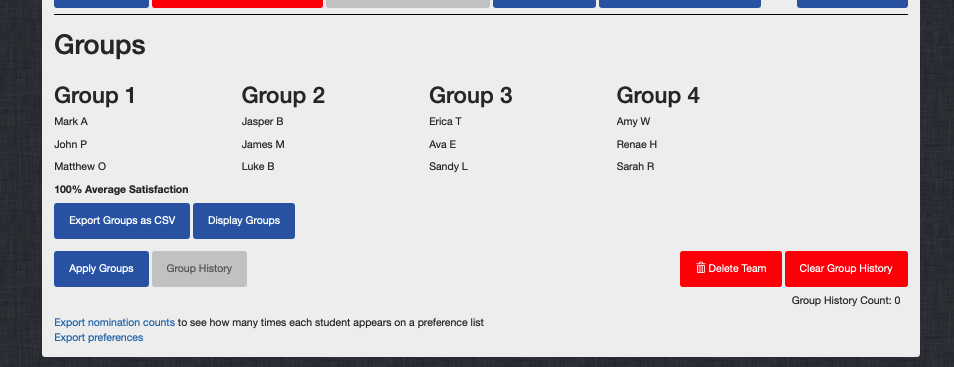
If you like, challenge the algorithm and make manual improvements—you’ll still see live updates to satisfaction metrics.
Using the above example, I used highlighted Jasper B in Group 2 by left clicking the mouse and whilst holding it down, dragged his name over to Group 1, and then moved John P to Group 2. It reduced the average satisfaction from 100% to 95% as Mark A had put John P as a preference.
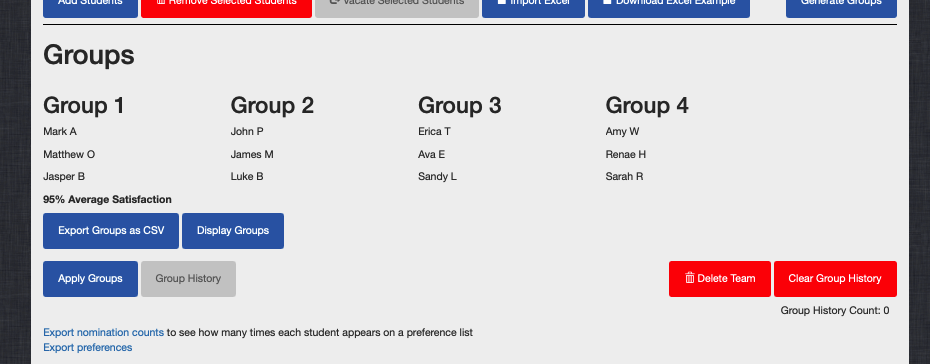
Using drag and drop allows you to play around with the groups yet also keep tabs instantly on the impact of your changes.
Hopefully this guide has helped you getting started with a simple but powerful example.
Final Thoughts
Clever Groups transforms what used to take hours into just a few minutes. Whether you're grouping 20 students or 200, the platform saves time, improves group satisfaction, and gives students a voice.
To learn more:
- Browse more articles at clevergroups.com/blog
- Reach out at clevergroups.com/contact
Stay tuned for more tutorials, and happy group-making!