
Using Clever Groups to generate high-functioning groups of students for classwork marking and evaluation
According to Cornell University, "Peer assessment, or review, can improve overall learning by helping students become better readers, writers, and collaborators. A well-designed peer review program also develops students’ evaluation and assessment skills." So there seems to be many benefits for group marking and evaluation.
Cornell University 2024, Center for Teaching Innovation website, accessed 29 July, 2024, <https://teaching.cornell.edu/resource/teaching-students-evaluate-each-other>
This Use Case is not intending to document best practices related to how to evaluate or mark student assignments or papers, but to present how Clever Groups can support this work, what is the implemented method.
Cornell University goes on to state:
"Consider how you will assign students to groups. Do you want them to work together for the entire semester, or change for different assignments? Do you want peer reviewers to remain anonymous? How many reviews will each assignment receive?"
Marking And Evaluation with Clever Groups
There are several ways the Clever Groups can support these objectives.
The simplest approach is to use Clever Groups to generate groups in appropriate team sizes and have them review work from those within each team. Using Clever Groups to obtain individual's preferences for working together is a fundamental function of Clever Groups.
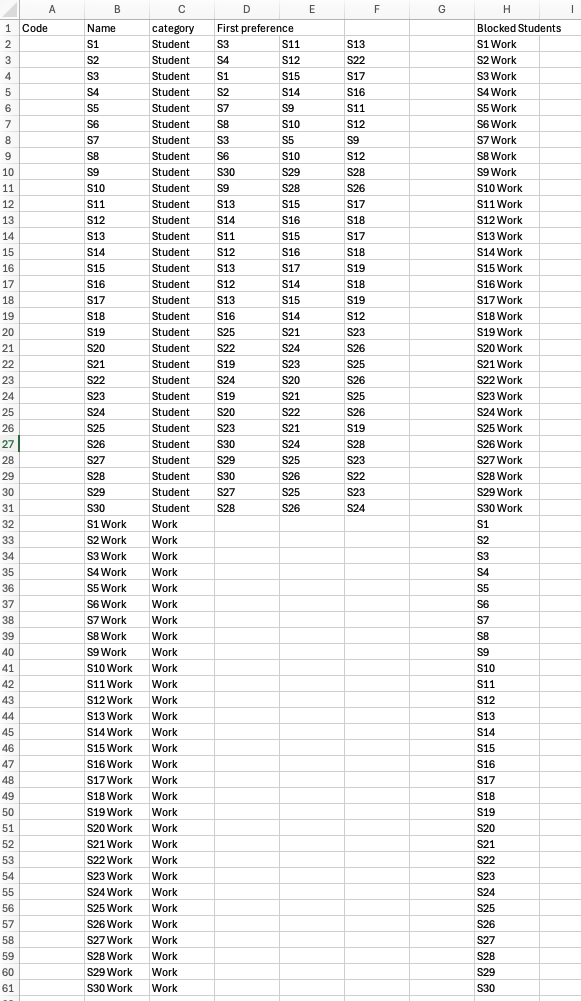
If however you wanted each group to review work not belonging to the team, this could be randomly distributed manually, but it could also be done by Clever Groups. A way to do this is to list each student's work within the entire team, ie "Student 1" would have "Student 1 Work" and the work would be included in the team as if a student. Using combination blocking you can then ensure "Student 1 Work" is never in the same group as "Student 1".
By generating groups and applying them, a group history is created to look back over when considering subsequent class review or marking is required. It allows you to confirm what students have worked together in groups previously.
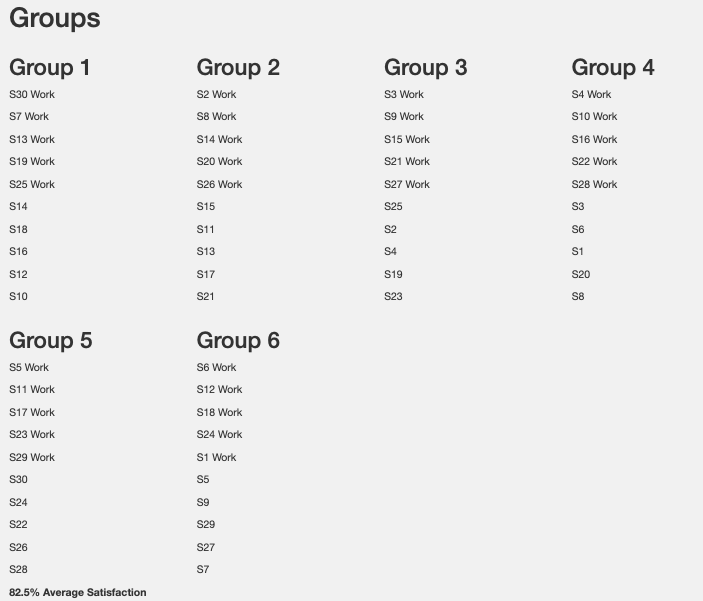
Scenario: A teacher has 30 students and wishes to break them into groups of 5 students, based on individual students' preferences, but make sure each group is marking work from a student not in their group.
Approach: Use Clever Groups to code students and work as equal weight in Clever Groups, and then use Clever Groups to obtain students' preferences efficiently. Then generate the groups, by equally distributing students and work among the groups.
Step 1. Create two categories: "Student" and "Work" in a new team. Using Excel, Students are listed S1 to S30 and their work is listed (as if students) as "S1 Work", "S2 Work", .... and import this into the team.
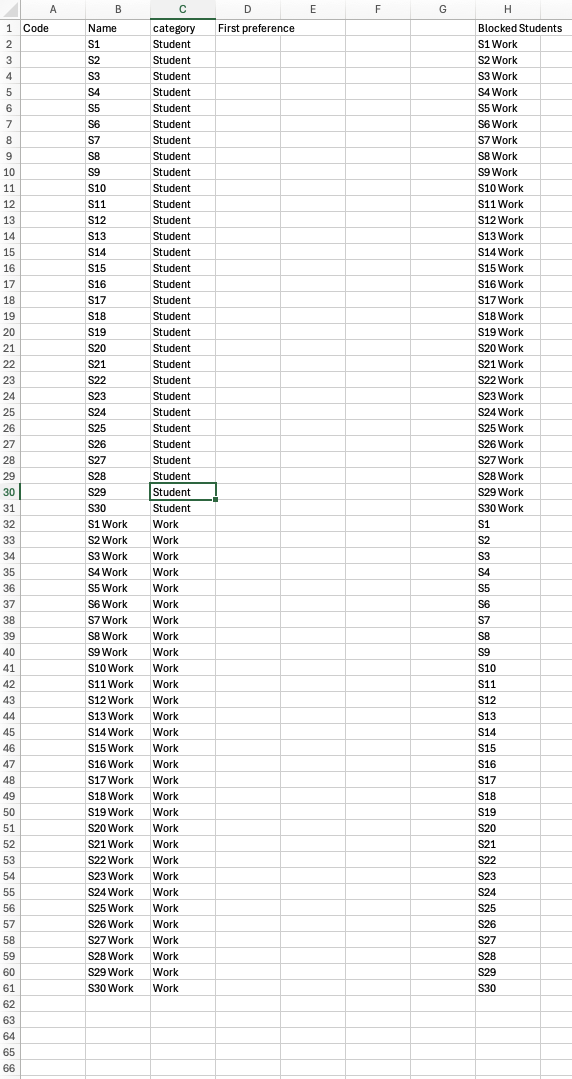
Step 2. Obtain students preferences. This could be on pieces of paper, email, by voice in class, but the most efficient way is to use the link or team code and have students enter their preferences themselves.
Step 3. Generate Groups! But make sure you are distributing work and students equally within the groups.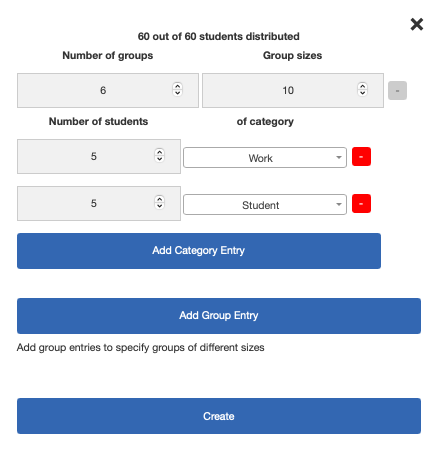
Step 4. Let the students know who is in their team and what work they will be doing. In this example, the first group generation produced an 82.55% average group satisfaction. Your average group satisfaction will vary based on your unique circumstances, but you will notice more importantly that no group has work from within their team, and also
Below is the input I used for this simulation: