
Allocating students to classes is complex with many factors and constraints to consider.
In fact, a casual review of different education organizations' processes to allocate students to classes demonstrates that there is no one standard approach, but in every case, there are stakeholders from the previous year's and the new year's teachers, specialist teachers, executive, parents, students, and more.
Each school places different emphasis and priority on different criteria. This can include consideration of each student's learning styles, talents, and strengths, learning difficulties, special needs, language, academic level, behavior needs, personality, and friendships.
In addition, schools include consideration of each of the new year's teachers preferences, past experience, professional skills and expertise, and the needs of new or graduate teachers, and seek to create effective, balanced stage teams.
Currently, Clever Groups' design can significantly boost the thorough analysis that's needed, across multiple rounds of allocation attempts.
Clever Groups is a preference-based group generator. These preferences could be those of the students themselves, and this is indeed a factor where Clever Groups shines. However teachers can leverage these known preferences and tweak them by defining student combinations that won't work for in a new class. Lets look at how teachers can use this to allocate students to classes.
Clever Groups has a category facility that allows the user to categorize each student in some way, if and as appropriate.
Using categories, a user can define a student in some way appropriate to the allocation task. One way this is often used is to spread students of similar categorisation across all classes, or to retain specific categories mostly (or completely) within one or more classes. This could include gender allocation, student leaders, and those categorised with negative behavior, special needs, etc. In Australia, student student leaders are called Prefects, hence I used the letter P.
The following approach is designed to provide an example of how Clever Groups could be used. How a user might actually use it is on a case by case basis.
For this example, for convenience, I will assume the students, their preferences, and other considerations are known and documents in a spreadsheet ready to upload to Clever Groups. It is possible Clever Groups was used in this manner in the year before, then it is a matter of exporting the information developed from the previous year and importing it again for the new year group.
I will also add P for student leader, BN for Behavior Negative, SN for Special Needs, B for Boy and G for Girl at the end of each student's name for clarity.
In a group of 192 students there will often be students with the same first name, and typically at least the first letter of their second name (or their full name) might be used to clearly identify which is which.
Allocation Scenario.
Grade: 6.
Total number of students: 196, comprising 21 student leaders (known as Prefects in Australia), 20 special needs' students, 22 behavior negative students.
Objective: Allocate the students into equal size classes and equally spread student leaders, special needs and behavior negative students across each class.
Generating Groups
Step 1. Determine the class or group sizes.
In this case there are exactly 7 classes that can be formed with 28 students per class. Clever Groups supports sizes of classes, but for simplicity we will use this arrangement. If it was appropriate to have all special needs people in their own class for instance, a class could be formed of 20 students, leaving 176 students remaining to be split into whatever size classes are required. If desired class sizes were, say, 30 students, out of 196 students this produce 6 classes of 30, and a class of only 16. Clever Groups can handle any of these arrangements by creating "Group Entries" to specify groups of different sizes.
Step 2. Enter Student or "Team Member" Categories.
This must be done before importing data, but if you were typing in students, it could be done at any time. In this example, we will create "Boy", "Girl", "Prefect" (student leader), "Special Needs", "Behavior Negative". Clearly a student could some of these at the same time, but for simplicity we are choosing these items.
In this simple example, the need to split special groups including student leaders, Special Needs, and Behavior Negative across classes over and above splitting Boys and Girls evenly is driving this approach.
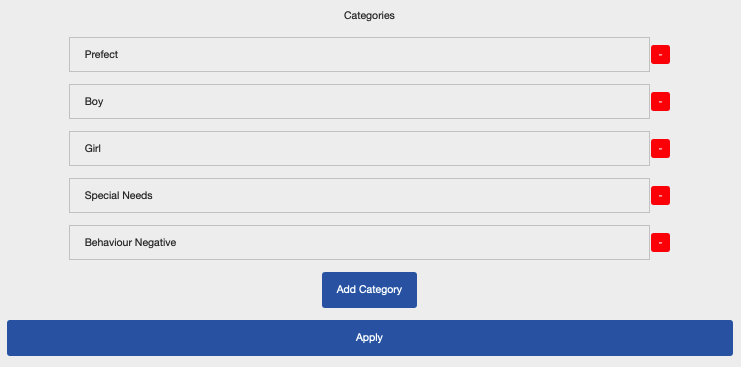
Once entered, we can move to the next step.
Step 3. Importing Students.
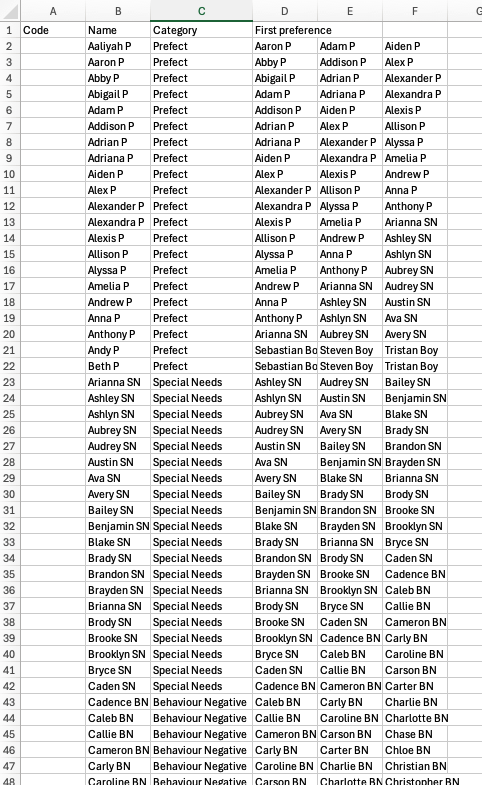
In this hypothetical example I have obtained the 192 most popular names from about 15 years ago, and listed them in a spreadsheet in the Clever Groups-required import format, along with their category, and for the example devised each student's three preferences for class friends in the coming year.
In order to get clarity on the output I have also added to the end of each student's name a code for which category they are part of, to help demonstrate the capability of Clever Groups. Hence you will note I used P = year leader, SN = Special Needs, BN = Behavior Negative, Boy = Boy, Girl = Girl.
Note: It would have been possible to indicate either in the spreadsheet, or after importing, which student combinations must be avoided by selecting for a list of students not to be paired with one or more specific students.
Step 4. Generate Groups.
After selecting all students, I hit the Generate Groups button.
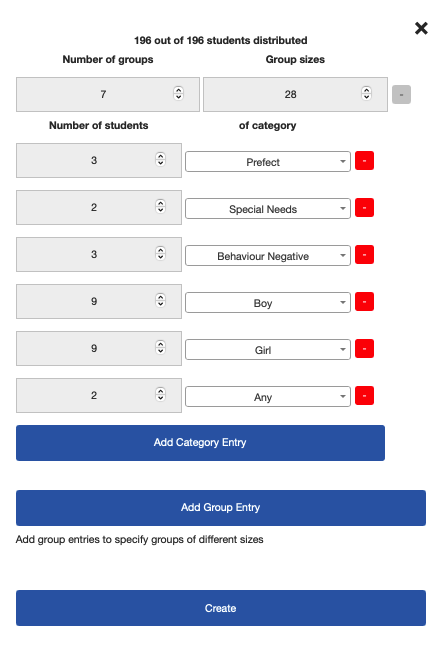
The popup asks me how many groups and group sizes, and allows me to enter the number of students for each category that I want in each class.
Because there are 21 year leaders Clever Groups allows me to select up to 3 year leaders per class.
Similarly I am able to select up to 3 behavior negative students per class, and up to 2 special needs students per class (with the remainder being split along preferences lines), leaving 9 boys and 9 girls per class.
Because there can't be an absolutely even split of the above categories it leaves 14 students of varying categories that need to found a class, and Clever Groups works this out for you, and selects students based on friends preferences and any of your blocking preferences, to complete the allocation.
Step 5. Review the results.
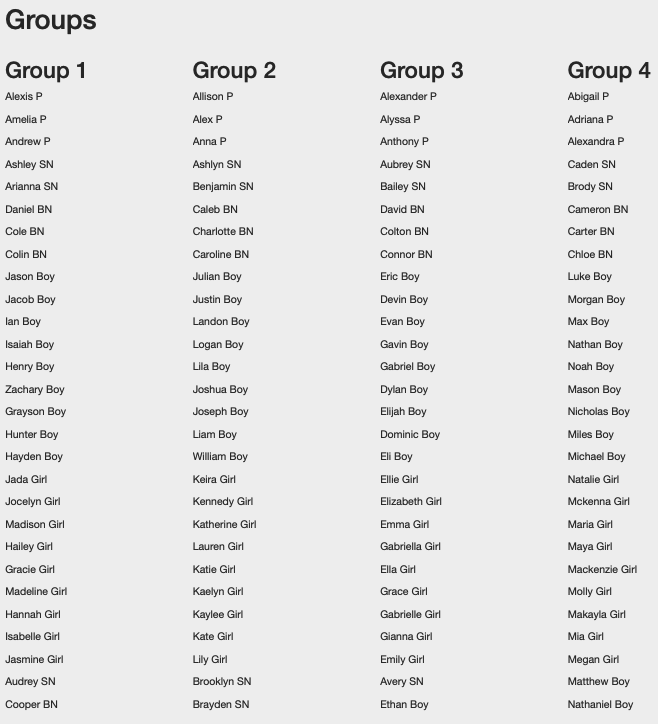
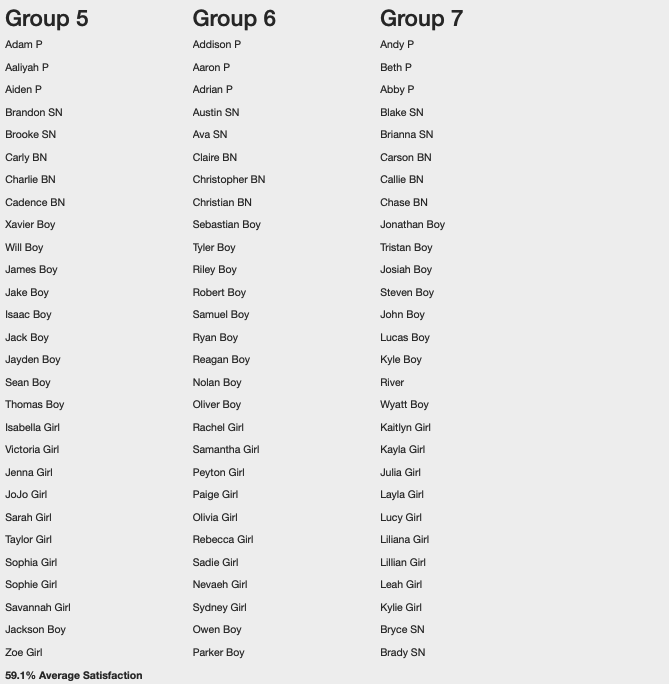
In my hypothetical example in one generation, I achieved 59.1% average student satisfaction. However as I completely made up student friend preferences and it was completely random (unlike real life) it was a hard test for Clever Groups. With a normal grade made up of multiple friend groups, in real life the average satisfaction should be far higher.
That said a casual inspection of the results might show that the teacher is more satisfied as friendship groups are lower priority than these other student blocking preferences, category and class size allocations that you would use in real life.
Each group has 3 year leaders.
Group 1 & 3 has 3 special needs' students, Group 4, 5 & 6 has 2, and Group 2 & 7 has 4.
Group 1, 2, 4, 6 & 7 has 3 behavior negative students, and Group 3 & 5 has 4.
Groups 1, 2 and 7 have 9 boys and 9 girls each, Group 5 has 10 boys and girls each. Group 4 and 6 has 9 girls and 10 boys, and group 4 has 9 girls and 11 boys.
A quick calculation against the original objective indicates an 80% fit against the objective based purely on category determinations, given at least one class needed to have 4 behavior negative students, and 6 classes needed to have 3 special needs students.
This indicates that Clever Groups has prioritized the categorisation over student friendship preferences and yet has delivered a good balance.
Clearly in a real world example you may need to do some further tweaking on the results in order to provide a final acceptable balance of all criteria, including those not modelled in Clever Groups.